![eligo_logo-bicolor-1.png]](https://support.eligo.social/hs-fs/hubfs/eligo_logo-bicolor-1.png?height=38&name=eligo_logo-bicolor-1.png)
What is a hybrid event?
A hybrid event is a meeting (assembly, board meeting, conference) that takes place simultaneously in a physical location and on a digital platform.
In this setup:
- Some participants are physically present at the event venue.
- Others attend remotely via streaming or videoconference.
- All participants, both in-person and remote, use the same digital platform to check in and vote, ensuring the uniqueness and transparency of the vote count.
By activating the assembly module, it is possible to manage remote events (assemblies, conferences, board meetings, etc.) while monitoring system access.
Step 1. Event configuration
The first step is to configure the event by following all the steps described in this article.
Step 2. Event validation
After configuring the event and verifying the accuracy of the data and settings, you can proceed with validating the event and sending voting credentials to the voters.
It is recommended to complete this step at least one day before the event or several hours in advance (for example, if the event takes place in the afternoon/evening, credentials can be sent in the morning). This ensures that all participants receive their credentials before the assembly begins.
Step 3. Check-in management
Managing a hybrid assembly requires careful and distinct monitoring of attendance. The system allows these two flows to be handled in parallel but in a centralized way:
-
Remote check-in: takes place automatically. After attendance monitoring is activated, the system records the voter’s presence at the exact moment they access the platform.
-
On-site check-in: for participants physically present, check-in is managed manually by the secretariat staff through the accreditation menu, which allows validation of each voter’s entry.
Thanks to the management dashboard, the organizer always has real-time visibility of the situation: the system displays two separate counters - one for on-site check-ins and one for online access - whose sum provides the total number needed for the immediate calculation of the quorum, shown in the total check-ins counter.
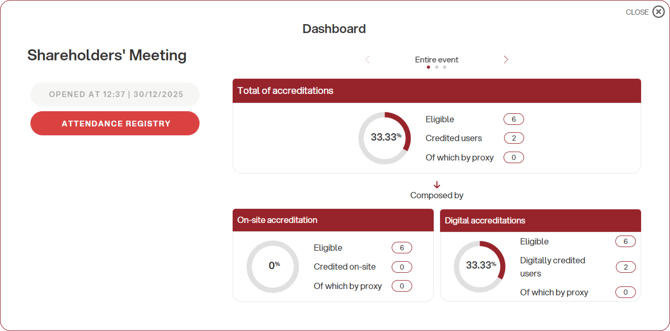
To avoid double counting, users registered manually do not appear in the digital check-in counter. However, their online presence can still be verified via the attendance registry.
Step 4. Opening the votes
In an assembly event, votes are managed at the ballot level. To open a vote, click the icon  on the far right of the ballot and select “Open single ballot” from the dropdown menu.
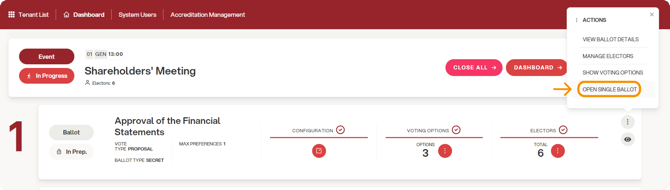
This allows individual management of the various agenda items to be voted on during the assembly.
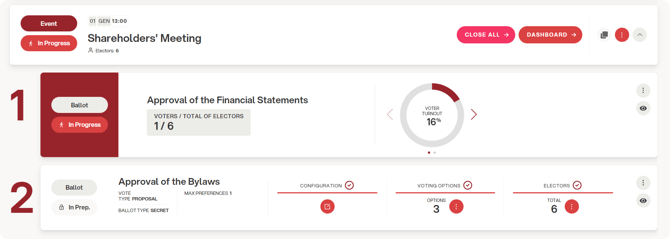
Voter turnout can be monitored either against the total number of eligible voters or against the accredited participants by clicking the arrows next to the counter.
Step 5. Closing the votes
Votes can be closed either in bulk using the “Close all” button or individually using the “Close vote” option from the ballot’s dropdown menu.
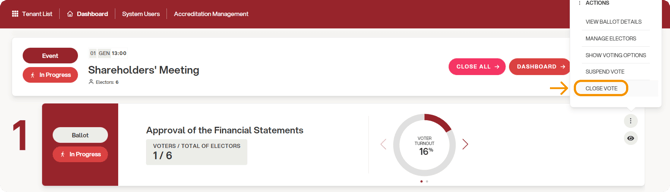
The “Close all” button closes the entire event and all its ballots, preventing the addition of any further votes. Therefore, it should only be used at the end of the proceedings and when you are certain that no additional motions or voting items need to be added.
Upon closing each ballot, reports will be generated within a few seconds.