![eligo_logo-bicolor-1.png]](https://support.eligo.social/hs-fs/hubfs/eligo_logo-bicolor-1.png?height=38&name=eligo_logo-bicolor-1.png)
It is possible to remove a voter at either the ballot level or the election event level.
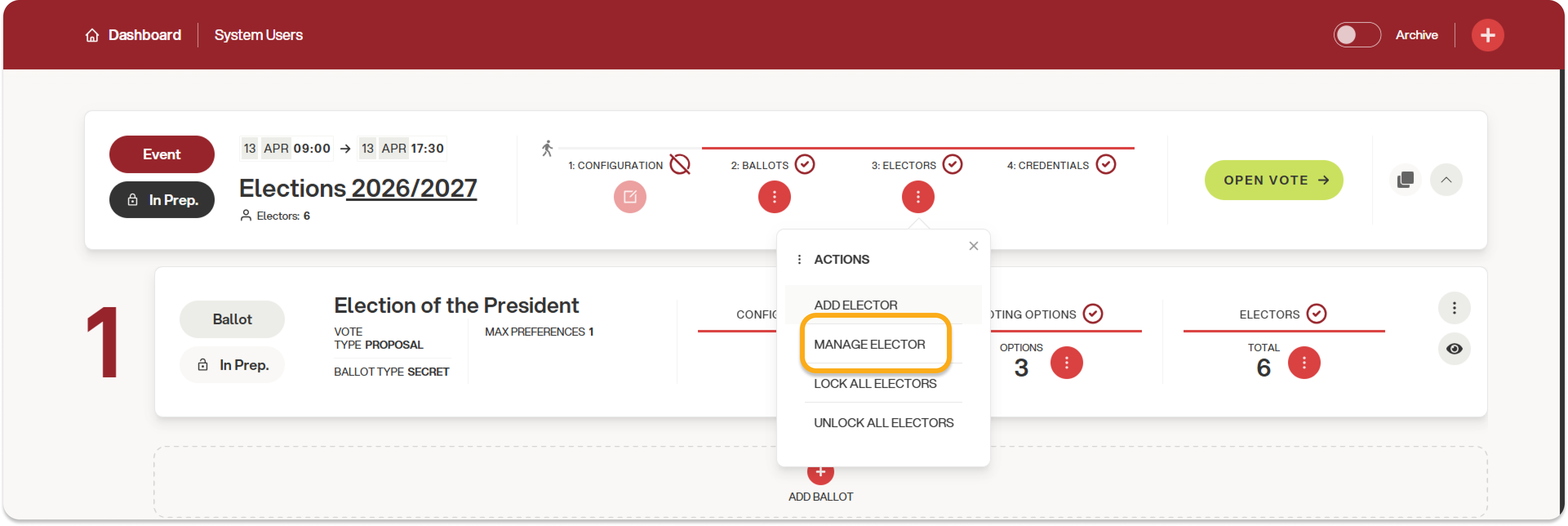
In the ballot (or event) toolbar, click on "Manage elector":
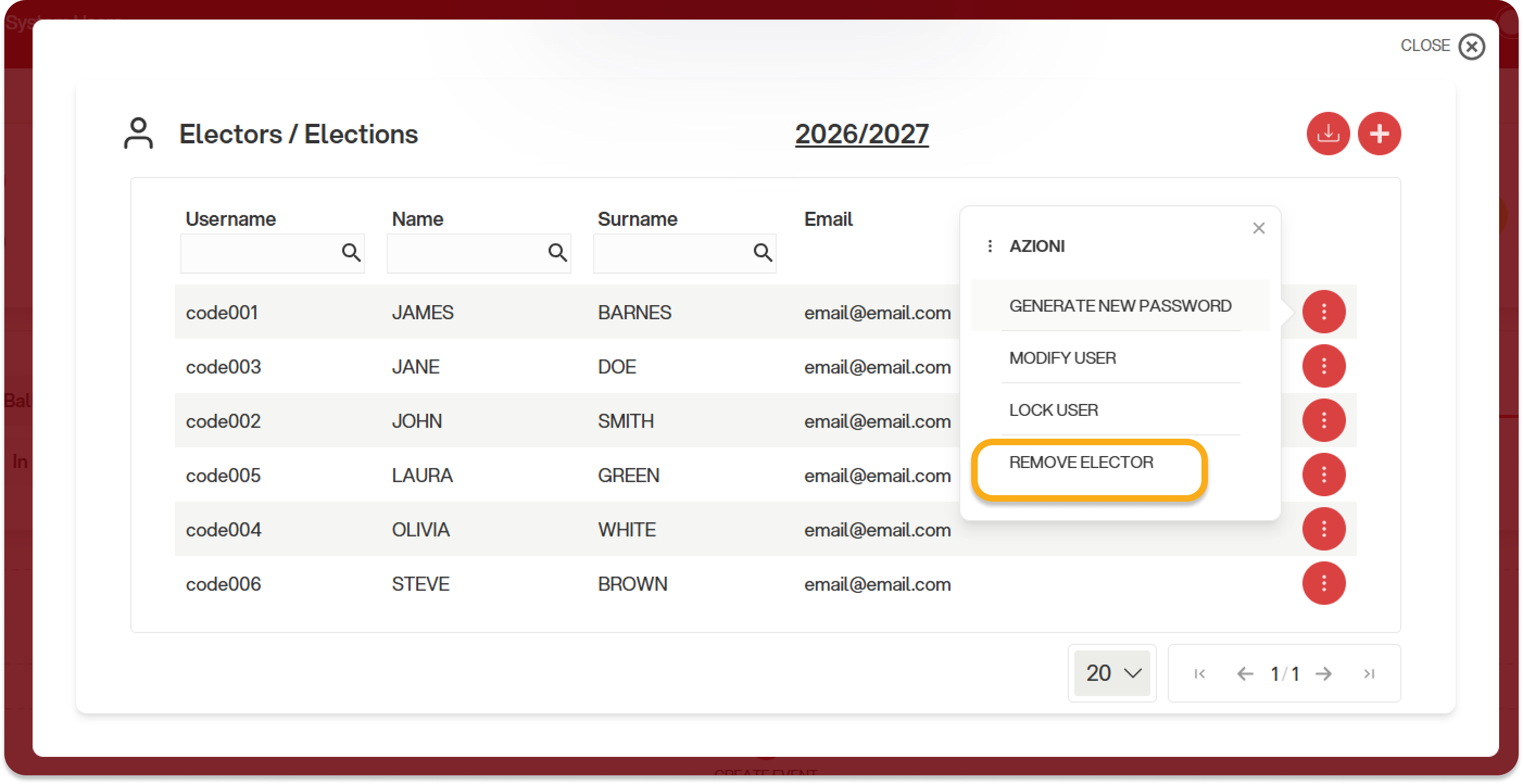
Select the voter, then click on "Remove Elector":
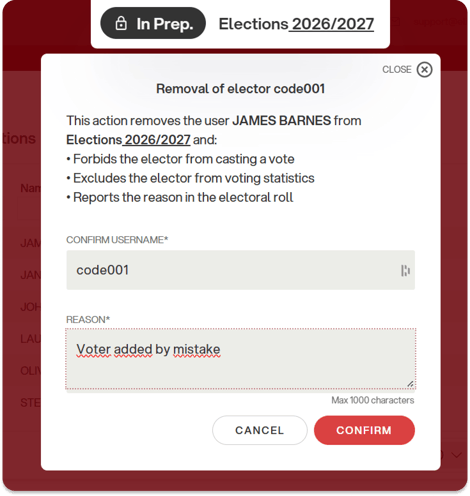
Next, you will need to:
-
Type the username of the voter you wish to remove;
-
State the reason for removal to ensure transparency throughout the electoral process. Please note that the removal action will be tracked in the final reports.
Once you click "Confirm", the removal is applied immediately. The removed voter will no longer be able to vote for that specific ballot, or for any ballots within the event where they were present (if the removal was performed at the event level). Furthermore, they will no longer be counted among the eligible voters and will not contribute to any participation quorum.
If you need to re-add the same voter, you must do so via manual addition. In this case, the note regarding the removal will still be visible in the final reports.
You can only remove a voter if:
-
They have not yet voted;
-
They have not received or assigned any proxies;
-
The ballot is not closed (the event/ballot must be validated or ongoing; removals are not possible once voting has concluded).
-
At the event level (removal from all ballots): the voter must not have voted in any of the event's open ballots.
Once voting is concluded, any removed voters will be listed in a dedicated section of the Electoral roll report and the Excel scrutiny file.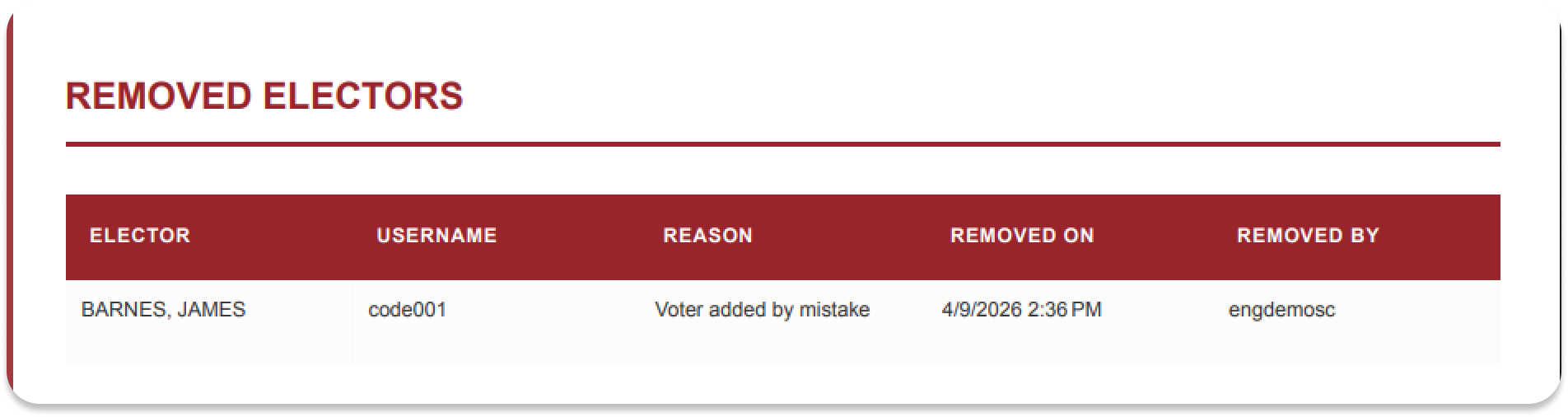
If you need to remove voters before credentials are sent and you do not need to track these removals in the dedicated tables, we recommend uploading a new Excel file, which will overwrite the previously imported one.
Common Use Cases for Voter Removal
Removing a voter may be necessary in several scenarios, including:
-
Incorrect entry: The voter was added by mistake or needs to be moved from one ballot to another;
-
Loss of voting rights: The voter is no longer permitted to vote after the event has been validated;
-
Incorrect username: For example, in cases of SSO integration, if the user identifier is incorrect and prevents them from accessing Eligo;
-
Management of substitutes: During assemblies, when a voter is replaced by another;
-
Attendance management: In groups of eligible voters where only those physically present may vote, you can remove absent voters who were previously uploaded to the platform.